
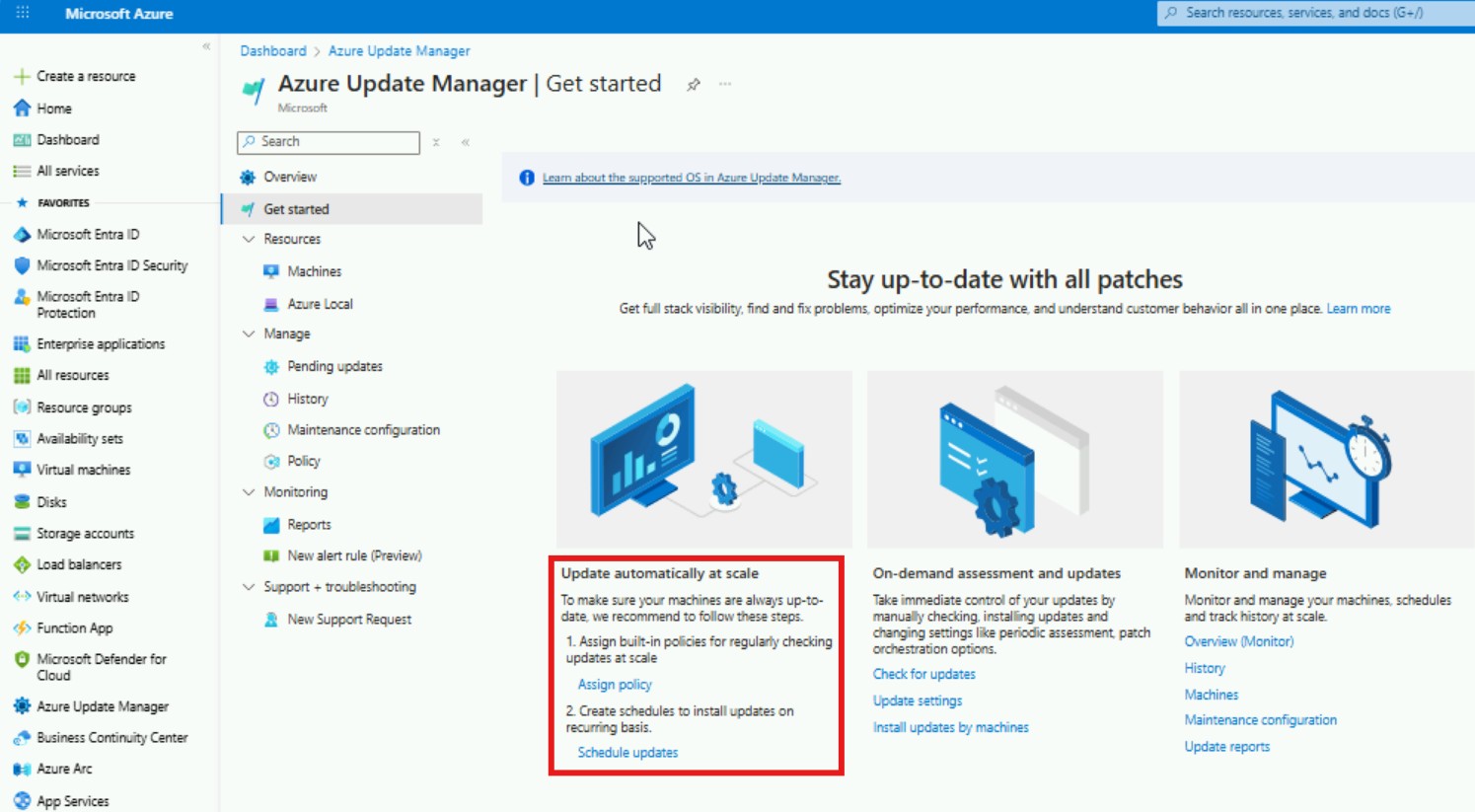

Start with the assessment at around 12:49 & add policies to enforce the assessment for VM's in Azure, assessment for VM's in Arc and Schedule Updates.
- Azure Update Manager > Get Started.
- Assign Policy.
- Select "Machines Should be Configured to Periodically Check for Missing System Updates."
- Select "Configure Periodic Checking For Missing System Updates on Azure Arc-Enabled Servers."
- Select "Schedule Recurring Updates Using Azure Update Manager."
- Enable Remediation.
- Schedule Updates (18:30). With dynamic-categories, tags and time-offsets as needed. (max 1000 for dynamic groups and max 3000 resources for schedule).
- QA systems.
- UAT systems.
- PROD systems.
- margin/buffer/overflow/troubleshoot.
You can do assessment and update-on-demand but orchastration is the way to go.
Large teams are going to want to pay attention to the Phased rollout of patching where internal communication between teams are needed:
27:43 - Phased rollout of patching
Changing Patch Orchestration
For systems that are set to "Azure Managed - Safe Deployment", you can change this group to "Customer Managed Schedules".
To do so, on the right-hand side:
- Group By "Patch Orchestration".
- Select everything in "Azure Managed - Safe Deployment".
- select UPDATE SETTINGS (at the top).
- select PERIODIC ASSESSMENT to ENABLE.
- select HOTPATCH to DISABLE.
- select PATCH ORCHESTRATION to "Customer Managed Schedules"
Microsoft Update (updates more than just the OS)
What's interesting about Azure Update Manager is that it is a reactionary reporting tool rather than a dictation/command-and-conquer tool, which I would expected it to be. In other words, AUM runs remote commands on the system to change the settings. Maybe it works, maybe it does not work. This is in contrast to SCCM or Group Policy that dictates to the system what should or should not be.
You can also login to the individual VM and change the setting and AUM reports accordingly after inventory refresh.
==============================
cd ..\systemtemp
wget https://raw.githubusercontent.com/asheroto/winget-install/refs/heads/master/winget-install.ps1 -outfile winget-install.ps1
.\winget-install.ps1
#.\winget-install.ps1 -force -Debug
#reboot
winget upgrade -r -u -h --accept-source-agreements --accept-package-agreements
#get-azvm -name vm-name-here-01 |start-AzVM
install-module pswindowsupdate
import-module pswindowsupdate
get-wuservicemanager
Add-WUServiceManager -ServiceID "7971f918-a847-4430-9279-4a52d1efe18d" -AddServiceFlag 7 -Confirm:$False
get-wuservicemanager
get-wuinstall -v -micro
get-wuinstall -v -micro -inst
#get-azvm -name vm-name-here-01 |stop-AzVM
==============================
See the VM Patch Status in Powershell
get-azvm |select name,{$_.OSProfile.WindowsConfiguration.EnableAutomaticUpdates},{$_.OSProfile.WindowsConfiguration.PatchSettings.PatchMode}
get-azvm -status |select name,osname,osversion,powerstate,{$_.OSProfile.WindowsConfiguration.EnableAutomaticUpdates},{$_.OSProfile.WindowsConfiguration.PatchSettings.PatchMode},priority,{$_.HardwareProfile.VmSize} |sort osversion |ft -auto
Naming convention:
https://www.clovernance.com/
https://www.azureperiodictable.com/
There are others but really, am I going to spin up a docker container just get a name.